|
|
|
|
|
|
| |
| |
|
|
|
|
| |
| |
|
|
Yes, I have Blender installed and I'm trying to figure out how to work it.

No, I think I'm definitely going to have to read the manual from cover
to cover. The program is just far too unconventional to learn any other
way. Nothing works in remotely the way you'd expect. All the commands
are hidden away and can only be accessed by pressing the secret keyboard
shortcuts. The only way you can find things is if you already know where
they are. There's no way you can learn this program just by playing with it.

So far, I've figured out how to move the view around, set up several
simultaneous views, how to get into edit mode, and how to move stuff
around. I haven't yet managed to figure out how to remove existing
geometry. (For example, deleting an edge makes every face that touches
it dissappear, rather than merging them like you'd expect.) I also have
no clue what the billions of cryptically-named buttons and displays do -
but hey, I probably don't need them yet anyway...
Post a reply to this message
|
|
| |
| |
|
|
|
|
| |
| |
|
|
On 12/17/09 09:34, Invisible wrote:
> No, I think I'm definitely going to have to read the manual from cover
> to cover. The program is just far too unconventional to learn any other
> way. Nothing works in remotely the way you'd expect. All the commands
> are hidden away and can only be accessed by pressing the secret keyboard
> shortcuts. The only way you can find things is if you already know where
> they are. There's no way you can learn this program just by playing with
> it.

	I'd suspect quite the opposite. I've heard the only way to learn is
total immersion - via numerous tutorials. Then you keep working on
Blender building whatever you wanted, and don't ever take a 2 week break.<G>

	Reading isn't going to make the keybindings/interface stick. Using them
a lot (tutorials) will.

--
The next war will determine not what is right, but what is left.
Post a reply to this message
|
|
| |
| |
|
|
|
|
| |
| |
|
|
>> There's no way you can learn this program just by playing with it.
>
>     I'd suspect quite the opposite. I've heard the only way to learn is
> total immersion - via numerous tutorials. Then you keep working on
> Blender building whatever you wanted, and don't ever take a 2 week
> break.<G>
>
>     Reading isn't going to make the keybindings/interface stick. Using
> them a lot (tutorials) will.

I think knowing the logic behind the interface (assuming there *is*
some) will probably help a lot. But sure, if you want to become _expert_
you're going to need to practise a lot. Currently I just can't make it
to *anything* interesting, because the UI is getting in the way too much.
Post a reply to this message
|
|
| |
| |
|
|
|
|
| |
| |
|
|
Invisible wrote:
> All the commands
> are hidden away and can only be accessed by pressing the secret keyboard
> shortcuts.

This is not quite true. What *is* true is that you have a whole bunch of
buttons that reveal menus full of other commands, and getting to an
operation without keyboard shortcuts takes forever.

But I'm pretty sure most of the modeling stuff at least is all in menus down
at the bottom of each frame.

But yeah, you have to use it, and when you stop it goes away again, because
there's no mnemonic way of using it.  (Unlike wordstar, whose keyboard
commands I still remember 30 years after I stopped using it.)

--
Darren New, San Diego CA, USA (PST)
   Human nature dictates that toothpaste tubes spend
   much longer being almost empty than almost full.
Post a reply to this message
|
|
| |
| |
|
|
|
|
| |
| |
|
|
Invisible escreveu:
> Yes, I have Blender installed and I'm trying to figure out how to work it.

Hope the list is a good start.  And yes, most of it I learned myself by
just trying out keys myself.  Oh, the wonders that curiosity makes...

remember:  ctrL+x is your friend, not enemy.  That way, you can learn by
messing up real bad.

--
a game sig: http://tinyurl.com/d3rxz9
Post a reply to this message
|
|
| |
| |
|
|
|
|
| |
| |
|
|
Darren New escreveu:
> Invisible wrote:
>> All the commands are hidden away and can only be accessed by pressing
>> the secret keyboard shortcuts.
>
> This is not quite true. What *is* true is that you have a whole bunch of
> buttons that reveal menus full of other commands, and getting to an
> operation without keyboard shortcuts takes forever.
>
> But I'm pretty sure most of the modeling stuff at least is all in menus
> down at the bottom of each frame.
>
> But yeah, you have to use it, and when you stop it goes away again,
> because there's no mnemonic way of using it.  (Unlike wordstar, whose
> keyboard commands I still remember 30 years after I stopped using it.)

I take it you just used wordstar far more than Blender.

ctrl+e = Edge tools menu
u = texture Unwrap
x,y,z = self evident axis
s = scale
r = rotate
g = grab
e = extrude
h, shift+h, alt+h = hide operations

and so on.  I think it's pretty logical.  What is ilogical is expecting
someone not used to visual 3D modelling knowing what extrude or unwrap
means...

--
a game sig: http://tinyurl.com/d3rxz9
Post a reply to this message
|
|
| |
| |
|
|
|
|
| |
| |
|
|
>> All the commands are hidden away and can only be accessed by pressing
>> the secret keyboard shortcuts.
>
> This is not quite true. What *is* true is that you have a whole bunch of
> buttons that reveal menus full of other commands, and getting to an
> operation without keyboard shortcuts takes forever.

Well no, I mean for example: If you press [space], a whole bunch of
stuff appears. I can't immediately see any other way of getting at any
of those commands.

Now, if you didn't know that pressing [space] makes that stuff appear
(and why would you?), you're going to have a hard time finding any of
those commands. And it seems every page I read, I discover more secret
key combinations that pop up new menus...

There's nothing *wrong* with keyboard shortcuts, but it does make the
learning curve rather steep.

> But yeah, you have to use it, and when you stop it goes away again,
> because there's no mnemonic way of using it.  (Unlike wordstar, whose
> keyboard commands I still remember 30 years after I stopped using it.)

Currently my main problem is with figuring out the general principles
the UI works under. Stuff like... clicking a menu item makes the menu
open, but clicking it again doesn't make the menu shut. Wuh?
Post a reply to this message
|
|
| |
| |
|
|
|
|
| |
| |
|
|
nemesis wrote:

> I think it's pretty logical.  What is ilogical is expecting
> someone not used to visual 3D modelling knowing what extrude or unwrap
> means...

Well, I don't know. All the other 3D modellers have their quirks, but in
all of them, once you've selected the right mode, clicking on a point
and dragging it makes it move. (And also any edges and faces associated
with it, obviously.) In Blender, this basic operation doesn't seem to
work...
Post a reply to this message
|
|
| |
| |
|
|
|
|
| |
| |
|
|
nemesis wrote:
> I take it you just used wordstar far more than Blender.

No. They just laid out the keyboard very mnemonically.

> ctrl+e = Edge tools menu
> u = texture Unwrap
> x,y,z = self evident axis
> s = scale
> r = rotate
> g = grab

See, anyone else would have called that "translate".

> e = extrude
> h, shift+h, alt+h = hide operations

Great. Which is which?  ;-)

> and so on.  I think it's pretty logical.

Well, when you list *only* the logically named keys, sure. Granted, blender
does a lot more than wordstar did, but that doesn't mean it's just as easy.

> What is ilogical is expecting
> someone not used to visual 3D modelling knowing what extrude or unwrap
> means...

Hey, don't get pissy at *me* - I'm not the one arguing its useless. I just
said the UI is hard to learn and to remember, which I think you'll find most
people agree with. In part because it *does* do so much.

I wish Wings3D let you set up keyboard shortcuts for more stuff, because
that's easy to use but slow because you *have* to go thru the menus.

--
Darren New, San Diego CA, USA (PST)
   Human nature dictates that toothpaste tubes spend
   much longer being almost empty than almost full.
Post a reply to this message
|
|
| |
| |
|
|
|
|
| |
| |
|
|
Invisible escreveu:
> Well no, I mean for example: If you press [space], a whole bunch of
> stuff appears. I can't immediately see any other way of getting at any
> of those commands.

They are either in the add item in the top bar or in the select or
object menu items in the bar immediately below the 3D view.

> Currently my main problem is with figuring out the general principles
> the UI works under. Stuff like... clicking a menu item makes the menu
> open, but clicking it again doesn't make the menu shut. Wuh?

left arrow keyboard button.

--
a game sig: http://tinyurl.com/d3rxz9
Post a reply to this message
|
|
| |
| |
|
|
|
|
| |
| |
|
|
Invisible escreveu:
> Well, I don't know. All the other 3D modellers have their quirks, but in
> all of them, once you've selected the right mode, clicking on a point
> and dragging it makes it move. (And also any edges and faces associated
> with it, obviously.) In Blender, this basic operation doesn't seem to
> work...

click with LMB and drag it around while holding LMB.  I don't know if
this can be changed, never bothered to find out because it seems just ok
to me.

--
a game sig: http://tinyurl.com/d3rxz9
Post a reply to this message
|
|
| |
| |
|
|
|
|
| |
| |
|
|
Invisible wrote:
>>> There's no way you can learn this program just by playing with it.
>>
>>     I'd suspect quite the opposite. I've heard the only way to learn
>> is total immersion - via numerous tutorials. Then you keep working on
>> Blender building whatever you wanted, and don't ever take a 2 week
>> break.<G>
>>
>>     Reading isn't going to make the keybindings/interface stick. Using
>> them a lot (tutorials) will.
>
> I think knowing the logic behind the interface (assuming there *is*
> some) will probably help a lot. But sure, if you want to become _expert_
> you're going to need to practise a lot. Currently I just can't make it
> to *anything* interesting, because the UI is getting in the way too much.

Heck. I tried following a tutorial *twice*, just to recreate the
identical object, and got lost *twice* at one of the steps, resulting in
an error that was nearly unrecoverable. I agree, the program needs a
*little* bit of a rethink on some of its parts, especially in trying to
differentiate between stuff you do in the actual texture/UV window, and
all the damn settings "for" that, which are plastered every place else,
but which are not used in actually setting up any of the textures/UV
settings, when initially applying them. And that is just the start of
the mess (but a critical one, for what I was trying to get done).

Oh, and what is it with applications that can "unwrap" a mesh to a UV
map, but do so either using an ugly form that you can't be precise with
(since all the surfaces have curves that prevent it), or a completely
flat one, where you can't tell what surface you are *actually* looking
at? lol Got to be a better way to do that, even if its just "let me
paint some basic colors on this damn thing, then export the mesh *with*
the colors, so I can tell what the hell I am doing."

--
void main () {
   If Schrödingers_cat is alive or version > 98 {
     if version = "Vista" {
       call slow_by_half();
       call DRM_everything();
     }
     call functional_code();
   }
   else
     call crash_windows();
}

<A HREF='http://www.daz3d.com/index.php?refid=16130551'>Get 3D Models,
3D Content, and 3D Software at DAZ3D!</A>
Post a reply to this message
|
|
| |
| |
|
|
|
|
| |
| |
|
|
Darren New escreveu:
> Hey, don't get pissy at *me*

I'm not pissy at you.  I'm obviously directing the comments at Orchid.

> just said the UI is hard to learn and to remember, which I think you'll
> find most people agree with. In part because it *does* do so much.

Yeah, but I was just pointing out there's some easily remembered
mnemonics to go with each keycombo.

--
a game sig: http://tinyurl.com/d3rxz9
Post a reply to this message
|
|
| |
| |
|
|
|
|
| |
| |
|
|
Invisible wrote:
> Well no, I mean for example: If you press [space], a whole bunch of
> stuff appears. I can't immediately see any other way of getting at any
> of those commands.

The "view" and "select" and "object" buttons down at the bottom are menus.

> There's nothing *wrong* with keyboard shortcuts, but it does make the
> learning curve rather steep.

Yes. Faster to use once you put them in your brain, but harder to learn.
Unless they're written on the menus, so you learn the ones taht are useful
to you in particular.

> Currently my main problem is with figuring out the general principles
> the UI works under.

That too.

--
Darren New, San Diego CA, USA (PST)
   Human nature dictates that toothpaste tubes spend
   much longer being almost empty than almost full.
Post a reply to this message
|
|
| |
| |
|
|
|
|
| |
| |
|
|
On Thu, 17 Dec 2009 18:07:57 +0100, nemesis <nam### [at] gmail com> wrote:
>
> click with LMB and drag it around while holding LMB. I don't know if
> this can be changed, never bothered to find out because it seems just ok
> to me.
Do note that the default is RMB, even though there is a setting to switch
that.
--
FE com> wrote:
>
> click with LMB and drag it around while holding LMB. I don't know if
> this can be changed, never bothered to find out because it seems just ok
> to me.
Do note that the default is RMB, even though there is a setting to switch
that.
--
FE
Post a reply to this message
|
|
| |
| |
|
|
|
|
| |
| |
|
|
Fredrik Eriksson escreveu:
> On Thu, 17 Dec 2009 18:07:57 +0100, nemesis <nam### [at] gmailcom> wrote:
>>
>> click with LMB and drag it around while holding LMB.  I don't know if
>> this can be changed, never bothered to find out because it seems just
>> ok to me.
>
> Do note that the default is RMB, even though there is a setting to
> switch that.

ouch!  True, don't know why I wrote LMB.  RMB is the default to select
and while holding, also grabbing.

--
a game sig: http://tinyurl.com/d3rxz9
Post a reply to this message
|
|
| |
| |
|
|
|
|
| |
| |
|
|
On Thu, 17 Dec 2009 18:15:05 +0100, Patrick Elliott <sel### [at] npgcablecom>
wrote:
>
> Oh, and what is it with applications that can "unwrap" a mesh to a UV
> map, but do so either using an ugly form that you can't be precise with
> (since all the surfaces have curves that prevent it), or a completely
> flat one, where you can't tell what surface you are *actually* looking
> at? lol Got to be a better way to do that, even if its just "let me
> paint some basic colors on this damn thing, then export the mesh *with*
> the colors, so I can tell what the hell I am doing."

Something like this?

http://wiki.blender.org/index.php/Doc:Manual/Materials/Vertex_Paint


--
FE
Post a reply to this message
|
|
| |
| |
|
|
|
|
| |
| |
|
|
nemesis wrote:
> Darren New escreveu:
>> Hey, don't get pissy at *me*
>
> I'm not pissy at you.  I'm obviously directing the comments at Orchid.
>
>> just said the UI is hard to learn and to remember, which I think
>> you'll find most people agree with. In part because it *does* do so much.
>
> Yeah, but I was just pointing out there's some easily remembered
> mnemonics to go with each keycombo.

Sure.  But you have to remember the mnemonics.  Unlike, say, arrow keys,
which need no mnemonic to remember which is which.  And they're not all
mnemonics, either, which also makes it difficult.

Plus, the fact that I have to remember D from ctl-D from Shift-D from
ctl-shift-D and they all do slightly different things? Difficult. But again,
it's because it does so much.

Also difficult is the number of buttons that influence the behavior of other
buttons, down in the lower windows, and the lovely labels like "VColPai"
that are supposed to be informative. :-)

--
Darren New, San Diego CA, USA (PST)
   Human nature dictates that toothpaste tubes spend
   much longer being almost empty than almost full.
Post a reply to this message
|
|
| |
| |
|
|
|
|
| |
| |
|
|
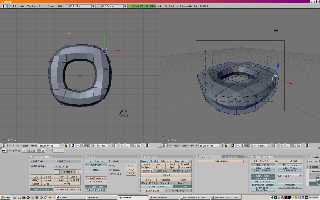
I finally managed to make a torus. (Yes, I realise you could just click
"add torus". But I wanted to see if it's possible to model it by hand.)
It's not an especially rounded torus, and it's taken about 20 minutes to
do, but it's vaguely torus-shaped. (See attached.)

My method was to start with a cube [since every tutorial I've found
always starts with a cube], scale it, and punch a hole through it.

Sounds easy, right? Well let me tell you: it isn't.

First, I want to scale it on just two axies, not all three. Apparently
you can do this by pressing the letter of the axies you want to scale
along. (Still not sure why the Y axis is drastically less sensitive than
the X axis. I specifically put the mouse pointer in exactly the just
spot before hitting the scale button...)

Next, punch a hole in the middle. Now the ideal thing to do here would
be to just draw a circular hole in the top and delete the face inside
it. But I have no clue how to do that. After much searching [earlier
today], I discovered that you can do an "edge subdivide", which takes an
edge and puts a new vertex in the middle of it. If you select the top
face of the cube and hit subdivide, the face turns into four smaller
faces. So far so good.

However, this operation also "shatters" all the other faces that touch
the top. And after a considerable length of time, I was utterly unable
to find a way to remove the extra unwanted edges without also removing
the faces they form part of. (WTF?)

After a while, I discovered that if you select the top and bottom
surfaces of the cube simultaneously (yes, apparently you can do that),
and subdivide both faces at once, you get a reasonable grid of points
that you can then work with.

Subdivide again and now the top and bottom each consist of 4x4 squares.
Now delete the middle four faces from the top and button surfaces.

This kind-of works. You now have a gaping hole in the middle though.
After a refreshingly brief search, I was able to determine that [space]
-> edit -> faces -> make face/edge will add a new face, so long as you
have two edges selected. At least, it seems to work in this instance.

Turn on the subsurf thingy and the result is a slightly torus-shaped
thingamy.

Now, if I can determine how to move all the existing geometry around
without completely destroying it, I might be able to rearrange all the
points into a more circular configuration. (Although obviously it'll
never be symmetrical...)

FWIW, it also took a Google search to figure out how to *save* the
rendered image. o_O Pretty obvious once you already know the answer
though...

--
http://blog.orphi.me.uk/
http://www.zazzle.com/MathematicalOrchid*
Post a reply to this message
Attachments:
Download 'torus1.jpg' (31 KB)
Preview of image 'torus1.jpg'

|
|
| |
| |
|
|
|
|
| |
| |
|
|
This didn't happen on the VM at work, but on my home PC Blender has
chosen to render the panels at the bottom of the screen so that there's
a 2-inch gap on the left, and the last panel is half-way off the right
edge of the screen. Anybody have any clue why?

(I did try just dragging the panels back to where they should be, but
nothing happens.)

--
http://blog.orphi.me.uk/
http://www.zazzle.com/MathematicalOrchid*
Post a reply to this message
|
|
| |
| |
|
|
|
|
| |
| |
|
|
Orchid XP v8 wrote:
> This didn't happen on the VM at work, but on my home PC Blender has
> chosen to render the panels at the bottom of the screen so that there's
> a 2-inch gap on the left, and the last panel is half-way off the right
> edge of the screen.

In case that didn't make sense...

--
http://blog.orphi.me.uk/
http://www.zazzle.com/MathematicalOrchid*
Post a reply to this message
Attachments:
Download 'blender2.png' (99 KB)
Preview of image 'blender2.png'
|
|
| |
| |
|
|
|
|
| |
| |
|
|
Orchid XP v8 escreveu:
> I finally managed to make a torus. (Yes, I realise you could just click
> "add torus". But I wanted to see if it's possible to model it by hand.)
> It's not an especially rounded torus, and it's taken about 20 minutes to
> do, but it's vaguely torus-shaped. (See attached.)
>
> My method was to start with a cube [since every tutorial I've found
> always starts with a cube], scale it, and punch a hole through it.

That box donut sucks.

Should`ve listened to my advice, added a circle, enter edit mode (tab),
grab it to the left (g), go to front view (1), hit spin button in the
panels bellow 4 times, hit w and select "Remove doubles", select all (a)
and hit ctrl+n to recalculate the normals.  This is how you do surfaces
of revolution and is precisely what the "Add torus" script does.

You then quit edit mode, add subsurface modifier in the F9 panels and
also click on "Set Smooth" in the first such panel to the left so you
have some phong shading on.

> Sounds easy, right? Well let me tell you: it isn't.

Of course it isn't easy doing something the wrong way.

> Next, punch a hole in the middle.

forget it:  this isn't CSG, don't try to treat it like one.

> After a while, I discovered that if you select the top and bottom
> surfaces of the cube simultaneously (yes, apparently you can do that),
> and subdivide both faces at once, you get a reasonable grid of points
> that you can then work with.

Forget unnecessary subdivision.

--
a game sig: http://tinyurl.com/d3rxz9
Post a reply to this message
|
|
| |
| |
|
|
|
|
| |
| |
|
|
You can drag all those panels around with alt+(Windows+)LMB.  You may
also use mouse wheel with to move them left right and even with ctrl to
do some zoom or shift to up/down them.

--
a game sig: http://tinyurl.com/d3rxz9
Post a reply to this message
|
|
| |
| |
|
|
|
|
| |
| |
|
|
nemesis wrote:
> You can drag all those panels around with alt+(Windows+)LMB.

You can drag them with just LMB. But they immediately spring back to
exactly where they were...

> You may
> also use mouse wheel with to move them left right and even with ctrl to
> do some zoom or shift to up/down them.

Ah. That's probably what happened then - I probably nudged the mouse
wheel. OK, fixed now...

--
http://blog.orphi.me.uk/
http://www.zazzle.com/MathematicalOrchid*
Post a reply to this message
|
|
| |
| |
|
|
|
|
| |
| |
|
|
"Invisible" <voi### [at] devnull> wrote in message
news:4b2a60a3$1@news.povray.org...

> There's nothing *wrong* with keyboard shortcuts, but it does make the
> learning curve rather steep.

There's something wrong on relying on keyboard shortcuts, as that's a
symptom of the lazy programmer, who cannot spend the time and effort to come
up with an intuitive *and* efficient graphical user interface. Yes, keyboard
shortcuts can be efficient in the hands of a power user, but I think there
are three cardinal rules for GUI applications which use them 1) Make them
completely complementary/optional 2) Make them customizable 3) Use platform
defaults and don't reinvent the wheel.

With 3D applications, mousing (for navigation and selection) should ideally
be fully customizable - although nobody really does it properly, AFAICS.
Alternatively, major vendors should get together and decide, say, RMB drag
is tumble, and that's that.
Post a reply to this message
|
|
| |
| |
|
|
|
|
| |
| |
|
|
nemesis wrote:
> forget it:  this isn't CSG, don't try to treat it like one.

I *will* say that I wish Blender implemented all the cool operations that
Wings3D implements, like the bevel and bridge and intrude and all that stuff.

--
Darren New, San Diego CA, USA (PST)
   Human nature dictates that toothpaste tubes spend
   much longer being almost empty than almost full.
Post a reply to this message
|
|
| |
| |
|
|
|
|
| |
| |
|
|
On 12/17/09 09:45, Invisible wrote:
> I think knowing the logic behind the interface (assuming there *is*
> some) will probably help a lot. But sure, if you want to become _expert_
> you're going to need to practise a lot. Currently I just can't make it

	No. If you want to do *anything* you'll need to practice a lot.


--
186,000 miles/sec: Not just a good idea, it's the LAW.
Post a reply to this message
|
|
| |
| |
|
|
|
|
| |
| |
|
|
On 12/17/09 10:22, Darren New wrote:
> But yeah, you have to use it, and when you stop it goes away again,
> because there's no mnemonic way of using it. (Unlike wordstar, whose
> keyboard commands I still remember 30 years after I stopped using it.)

Really? In 1979? You used it for at most 1-2 years? What was its
replacement?

--
186,000 miles/sec: Not just a good idea, it's the LAW.
Post a reply to this message
|
|
| |
| |
|
|
|
|
| |
| |
|
|
"somebody" <x### [at] ycom> wrote:
> "Invisible" <voi### [at] devnull> wrote in message
> news:4b2a60a3$1@news.povray.org...
>
> > There's nothing *wrong* with keyboard shortcuts, but it does make the
> > learning curve rather steep.
>
> There's something wrong on relying on keyboard shortcuts, as that's a
> symptom of the lazy programmer, who cannot spend the time and effort to come
> up with an intuitive *and* efficient graphical user interface. Yes, keyboard
> shortcuts can be efficient in the hands of a power user, but I think there
> are three cardinal rules for GUI applications which use them 1) Make them
> completely complementary/optional 2) Make them customizable 3) Use platform
> defaults and don't reinvent the wheel.
>
> With 3D applications, mousing (for navigation and selection) should ideally
> be fully customizable - although nobody really does it properly, AFAICS.
> Alternatively, major vendors should get together and decide, say, RMB drag
> is tumble, and that's that.

That's been precisely tackled in Blender 2.5 complete interface overhaul.  I
mean, all your 3 points.

I'd actually say Invisible to try it rather than learn the old shoe going out of
style, except it's still alpha, buggy and lacking most other features.
Post a reply to this message
|
|
| |
| |
|
|
|
|
| |
| |
|
|
Darren New <dne### [at] sanrrcom> wrote:
> nemesis wrote:
> > forget it:  this isn't CSG, don't try to treat it like one.
>
> I *will* say that I wish Blender implemented all the cool operations that
> Wings3D implements, like the bevel and bridge and intrude and all that stuff.

Perhaps it'll get those, thanks to the new BMesh system that's likely getting
into 2.5.
Post a reply to this message
|
|
| |
| |
|
|
|
|
| |
| |
|
|
> That's been precisely tackled in Blender 2.5 complete interface overhaul.
> I
> mean, all your 3 points.
>
> I'd actually say Invisible to try it rather than learn the old shoe going
> out of
> style, except it's still alpha, buggy and lacking most other features.

I wish you could have the right button to open up the menu that space bar
used to bring up, don't they realise how utterly stupid it is not to have a
menu appear when the user presses right button?

And for god sake use the windows API for menus, so they don't close randomly
just by hovering the mouse over the wrong thing.

I hope the new complete interface overhaul fixes these things.
Post a reply to this message
|
|
| |
| |
|
|
|
|
| |
| |
|
|
> Now, if I can determine how to move all the existing geometry around
> without completely destroying it, I might be able to rearrange all the
> points into a more circular configuration. (Although obviously it'll
> never be symmetrical...)

If you use the mirror modifier you can work on half/quarter/eighth
(depending how many axes you mirror it on) of the model and have the
modifier automatically generate the rest on the fly.  When drawing the mesh
for cars I usually mirror from left/right of the car as for most parts it's
totally symmetrical.

Looking good though, just set the normal mode to "smooth" rather than
"flat", add a few more sub-division levels and you'll have created your
first "obviously totally impossible million triangles placed by hand" :-)
Post a reply to this message
|
|
| |
| |
|
|
|
|
| |
| |
|
|
>> Well, I don't know. All the other 3D modellers have their quirks, but
>> in all of them, once you've selected the right mode, clicking on a
>> point and dragging it makes it move. (And also any edges and faces
>> associated with it, obviously.) In Blender, this basic operation
>> doesn't seem to work...
>
> click with LMB and drag it around while holding LMB.  I don't know if
> this can be changed, never bothered to find out because it seems just ok
> to me.

Doesn't seem to work.

What I have discovered, however, is that you can do the following:
Assuming the thing you want to move is selected, press the LMB and drag.
Nothing happens. Release the LMB, and *then* the selected item(s) move
as you move the mouse, even if the mouse is nowhere near them. Click the
LMB again to stop moving (or ESC to cancel).

Seems like a pretty screwy choice, but hey, it works I guess...
Post a reply to this message
|
|
| |
| |
|
|
|
|
| |
| |
|
|
>>> click with LMB and drag it around while holding LMB.  I don't know if
>>> this can be changed, never bothered to find out because it seems just
>>> ok to me.
>>
>> Do note that the default is RMB, even though there is a setting to
>> switch that.
>
> ouch!  True, don't know why I wrote LMB.  RMB is the default to select
> and while holding, also grabbing.

Oh, right. So if I drag with the RMB, it should just move like you
expect it to?

Was whoever designed Blender left-handed or something?

(On the right hand, the LMB is operated by a much stronger finger than
the RMB, and so it's much easier to hold down while moving the mouse
around. Basic HCI.)
Post a reply to this message
|
|
| |
| |
|
|
|
|
| |
| |
|
|
>> There's nothing *wrong* with keyboard shortcuts, but it does make the
>> learning curve rather steep.
>
> Yes. Faster to use once you put them in your brain, but harder to learn.
> Unless they're written on the menus, so you learn the ones taht are
> useful to you in particular.

Usual practice is to design a UI which is intuitive and easy to figure
out using the mouse, and to label the keyboard shortcuts on the UI. That
way, if you constantly find yourself clicking the same button or menu
item, you can learn the shortcut.

Blender, on the other hand, seems to take the view that memorising pages
of key combinations is the default way to operate the program, and a few
items also have a UI in case you want it.

(People have actually done studies on UI design, you know...)

>> Currently my main problem is with figuring out the general principles
>> the UI works under.
>
> That too.

Well, it could be worse.

I could be using Linux, where seemingly *every* individual program
operates in a completely different way. :-}
Post a reply to this message
|
|
| |
| |
|
|
|
|
| |
| |
|
|
> If you use the mirror modifier you can work on half/quarter/eighth
> (depending how many axes you mirror it on) of the model and have the
> modifier automatically generate the rest on the fly.

Can you do that to a model that already exists? Or do you have to
manually cut it in half before mirroring it?

> Looking good though, just set the normal mode to "smooth" rather than
> "flat", add a few more sub-division levels and you'll have created your
> first "obviously totally impossible million triangles placed by hand" :-)

Now to make it circular...
Post a reply to this message
|
|
| |
| |
|
|
|
|
| |
| |
|
|
nemesis wrote:

> That box donut sucks.

Sure. But it's still one of the most complex mesh objects I have ever
constructed in all the years I've been playing with mesh editors.

As I say, if I wanted an actual torus, I could just click "add torus".
I'm trying to see if it's possible to model nontrivial shapes using only
a mesh editor. A torus is about the simplest shape that isn't completely
trivial. Next I might try a genus-2 surface. (I've never seen one
offered by any package, ever. And it's not a SOR.)

> Should`ve listened to my advice, added a circle, enter edit mode (tab),
> grab it to the left (g), go to front view (1), hit spin button in the
> panels below 4 times, hit w and select "Remove doubles", select all (a)
> and hit ctrl+n to recalculate the normals.  This is how you do surfaces
> of revolution and is precisely what the "Add torus" script does.

I haven't come across this in the documentation yet, but what does
Blender mean by "grab"?

Also, IME pressing "a" seems to mean "UNselect all". Some of the
documentation indicates it's supposed to invert the selection, but that
doesn't appear to be the case...

>> Sounds easy, right? Well let me tell you: it isn't.
>
> Of course it isn't easy doing something the wrong way.

Well, they say you learn by your mistakes... or something...

>> Next, punch a hole in the middle.
>
> forget it:  this isn't CSG, don't try to treat it like one.

Well, there are two ways to make an object. One is to start with nothing
and slowly build it into something. The other is to start with something
and slowly cut it down to the thing you want.

I did try taking a cube and extruding it multiple times. I managed to
make a closed curve, but I couldn't figure out how to join the ends
together properly. So I tried the subtractive approach instead.

I guess the other thing I could have tried is drawing points and lines
one at a time, but I have no idea how to do that yet.
Post a reply to this message
|
|
| |
| |
|
|
|
|
| |
| |
|
|
Forward Kinetics - you're doing it... horribly, horribly wrong,
actually. o_O

(OTOH, I made a shape with vaguely resembles a gingerbread man, which is
highly implausible. Now, if I could just get rid of the polygon edges...)
Post a reply to this message
Attachments:
Download 'gus3.jpeg.jpg' (33 KB)
Preview of image 'gus3.jpeg.jpg'

|
|
| |
| |
|
|
|
|
| |
| |
|
|
On 12/18/09 01:32, scott wrote:
> I wish you could have the right button to open up the menu that space
> bar used to bring up, don't they realise how utterly stupid it is not to
> have a menu appear when the user presses right button?

	Somehow, I've never been sympathetic to this kind of complaint. Maybe
I'm an "old fart" (who's not that old in age) who remembers the time
when this was not the default behavior of apps.

	From my perspective, the question isn't "Does this conform to the
Windows interface standard (which may not be that great)?" but "Is it
really hard to learn?" and "Is their choice of deviating from the
standard efficient?"

	But then again, I'm also a GIMP user...


--
Row, row, row your bits, gently down the stream...
Post a reply to this message
|
|
| |
| |
|
|
|
|
| |
| |
|
|
On Fri, 18 Dec 2009 11:08:13 +0100, Invisible <voi### [at] devnull> wrote:
>
> I haven't come across this in the documentation yet, but what does
> Blender mean by "grab"?

It means you grab something and move it around, i.e. what some others call
"translate".


> Also, IME pressing "a" seems to mean "UNselect all". Some of the
> documentation indicates it's supposed to invert the selection, but that
> doesn't appear to be the case...

If anything is already selected, "a" clears the selection. If nothing is
selected, "a" selects everything.


> I guess the other thing I could have tried is drawing points and lines
> one at a time, but I have no idea how to do that yet.

Ctrl+LMB in Mesh Edit mode adds a new vertex.


--
FE
Post a reply to this message
|
|
| |
| |
|
|
|
|
| |
| |
|
|
Invisible escreveu:
> (OTOH, I made a shape with vaguely resembles a gingerbread man, which is
> highly implausible. Now, if I could just get rid of the polygon edges...)

I don't see polygon edges, just smooth curved surfaces.  Glad to see you
finally managed to use subsurf modifier and Set Smooth.

Gingerbread Man is like that as far as I remember.  I mean, front and
back are pretty flat and thus the edges are not as curvy as you could
probably get with a more spherical/round surface.  Which you can, by the
way.

--
a game sig: http://tinyurl.com/d3rxz9
Post a reply to this message
|
|
| |
| |
|
|
|
|
| |
| |
|
|
Invisible escreveu:
> nemesis wrote:
> As I say, if I wanted an actual torus, I could just click "add torus".
> I'm trying to see if it's possible to model nontrivial shapes using only
> a mesh editor. A torus is about the simplest shape that isn't completely
> trivial.

Yes, but you still got it wrong on a matter of principles:  you know a
torus is the result of rotating a circle around an axis, you knew I told
you about the very useful spin button, and yet you felt like it'd be fun
to try to make it out of a hole through a box.  Doesn't make any sense.

> Next I might try a genus-2 surface. (I've never seen one
> offered by any package, ever. And it's not a SOR.)

Povray SDL is more well suited for math surfaces, you'll be boring
yourself with a mesh editor for that.

> Also, IME pressing "a" seems to mean "UNselect all". Some of the
> documentation indicates it's supposed to invert the selection, but that
> doesn't appear to be the case...

a either selects all or unselects all in case there's anything selected.

ctrl+i inverts a selection.

>> forget it:  this isn't CSG, don't try to treat it like one.
>
> Well, there are two ways to make an object. One is to start with nothing
> and slowly build it into something. The other is to start with something
> and slowly cut it down to the thing you want.

Cuts don't really work fine in mesh editors.

> I guess the other thing I could have tried is drawing points and lines
> one at a time, but I have no idea how to do that yet.

Sure you know, I told you how to to so before:  when either in top, side
or front view, select a single vertice and go ctrl+LMB clicking
throughout the viewing plane.  Each ctrl+click will automatically
extrude each vertice/edge/face.  Have you actually managed to get your
belt this way?

--
a game sig: http://tinyurl.com/d3rxz9
Post a reply to this message
|
|
| |
| |
|
|
|
|
| |
| |
|
|
scott escreveu:
>> That's been precisely tackled in Blender 2.5 complete interface
>> overhaul. I
>> mean, all your 3 points.
>>
>> I'd actually say Invisible to try it rather than learn the old shoe
>> going out of
>> style, except it's still alpha, buggy and lacking most other features.
>
> I wish you could have the right button to open up the menu that space
> bar used to bring up, don't they realise how utterly stupid it is not to
> have a menu appear when the user presses right button?

I'm already pissed enough that the easy space keypress to bring on the
main menu has been replaced with a ctrl+a and no, I don't think it'd be
more useful to have a menu showing up when I press right button:  I'm
expecting the 3D cursor to move, which in the context of a mesh editing
software is far more useful than menus readily found otherwise.

--
a game sig: http://tinyurl.com/d3rxz9
Post a reply to this message
|
|
| |
| |
|
|
|
|
| |
| |
|
|
Invisible escreveu:
> Was whoever designed Blender left-handed or something?

I don't know, perhaps the same other 80% of guys in the industry who
don't use povray's convention.

--
a game sig: http://tinyurl.com/d3rxz9
Post a reply to this message
|
|
| |
| |
|
|
|
|
| |
| |
|
|
>> Was whoever designed Blender left-handed or something?
>
> I don't know, perhaps the same other 80% of guys in the industry who
> don't use povray's convention.

...actually I was talking about using the RMB for all the most important
functions, rather than the LMB like every normal application on the planet.

--
http://blog.orphi.me.uk/
http://www.zazzle.com/MathematicalOrchid*
Post a reply to this message
|
|
| |
| |
|
|
|
|
| |
| |
|
|
Invisible wrote:
>>> There's nothing *wrong* with keyboard shortcuts, but it does make the
>>> learning curve rather steep.
>>
>> Yes. Faster to use once you put them in your brain, but harder to
>> learn. Unless they're written on the menus, so you learn the ones taht
>> are useful to you in particular.
>
> Usual practice is to design a UI which is intuitive and easy to figure
> out using the mouse, and to label the keyboard shortcuts on the UI.

Yes. That's what I was describing, and what Blender does for the stuff that
has menus.

--
Darren New, San Diego CA, USA (PST)
   Human nature dictates that toothpaste tubes spend
   much longer being almost empty than almost full.
Post a reply to this message
|
|
| |
| |
|
|
|
|
| |
| |
|
|
nemesis wrote:
> That's been precisely tackled in Blender 2.5 complete interface overhaul.

Because, you know, the UI was so well done in earlier versions, and nobody
ever complained about it. :-)

--
Darren New, San Diego CA, USA (PST)
   Human nature dictates that toothpaste tubes spend
   much longer being almost empty than almost full.
Post a reply to this message
|
|
| |
| |
|
|
|
|
| |
| |
|
|
Neeum Zawan wrote:
> who remembers the time when this was not the default behavior of apps.

Dude, the guys who invented menus did it this way. It has never *not* been
the way to do it. :-)

>     From my perspective, the question isn't "Does this conform to the
> Windows interface standard (which may not be that great)?" but "Is it
> really hard to learn?" and "Is their choice of deviating from the
> standard efficient?"

Those are subjective. Following the Windows standard makes it easier to
learn for windows users.


--
Darren New, San Diego CA, USA (PST)
   Human nature dictates that toothpaste tubes spend
   much longer being almost empty than almost full.
Post a reply to this message
|
|
| |
| |
|
|
|
|
| |
| |
|
|
Neeum Zawan wrote:
> On 12/17/09 10:22, Darren New wrote:
>> But yeah, you have to use it, and when you stop it goes away again,
>> because there's no mnemonic way of using it. (Unlike wordstar, whose
>> keyboard commands I still remember 30 years after I stopped using it.)
>
> Really? In 1979?

Yeah. I used it from 79 to about 84 or so.

> You used it for at most 1-2 years? What was its replacement?

Ummm... Oh, I think PMate was the next editor I did lots of work with. It
was TECO-like only for PCs.

--
Darren New, San Diego CA, USA (PST)
   Human nature dictates that toothpaste tubes spend
   much longer being almost empty than almost full.
Post a reply to this message
|
|
| |
| |
|
|
|
|
| |
| |
|
|
Invisible wrote:
> Sure. But it's still one of the most complex mesh objects I have ever
> constructed in all the years I've been playing with mesh editors.

Try Wings.  Or try going thru a tutorial on Blender, just following the
steps without trying to memorize anything, and then try Wings. It's
basically the same ideas.  Each takes a bit of time (like, maybe, 6 hours)
of playing with it to get to the point you're not breaking the model every 5
minutes.

> I haven't come across this in the documentation yet, but what does
> Blender mean by "grab"?

Translate.  Except they already used the T key, so they called it grab.

--
Darren New, San Diego CA, USA (PST)
   Human nature dictates that toothpaste tubes spend
   much longer being almost empty than almost full.
Post a reply to this message
|
|
| |
| |
|
|
|
|
| |